Decoding the GATE Virtual Calculator: Speed Hacks & Common Miscalculations
A practical guide to the GATE on-screen calculator: function-entry order, memory keys, angle modes and NAT precision.
KnowledgeGate Team
Exam prep & CS education
29 Sep 20266 min read
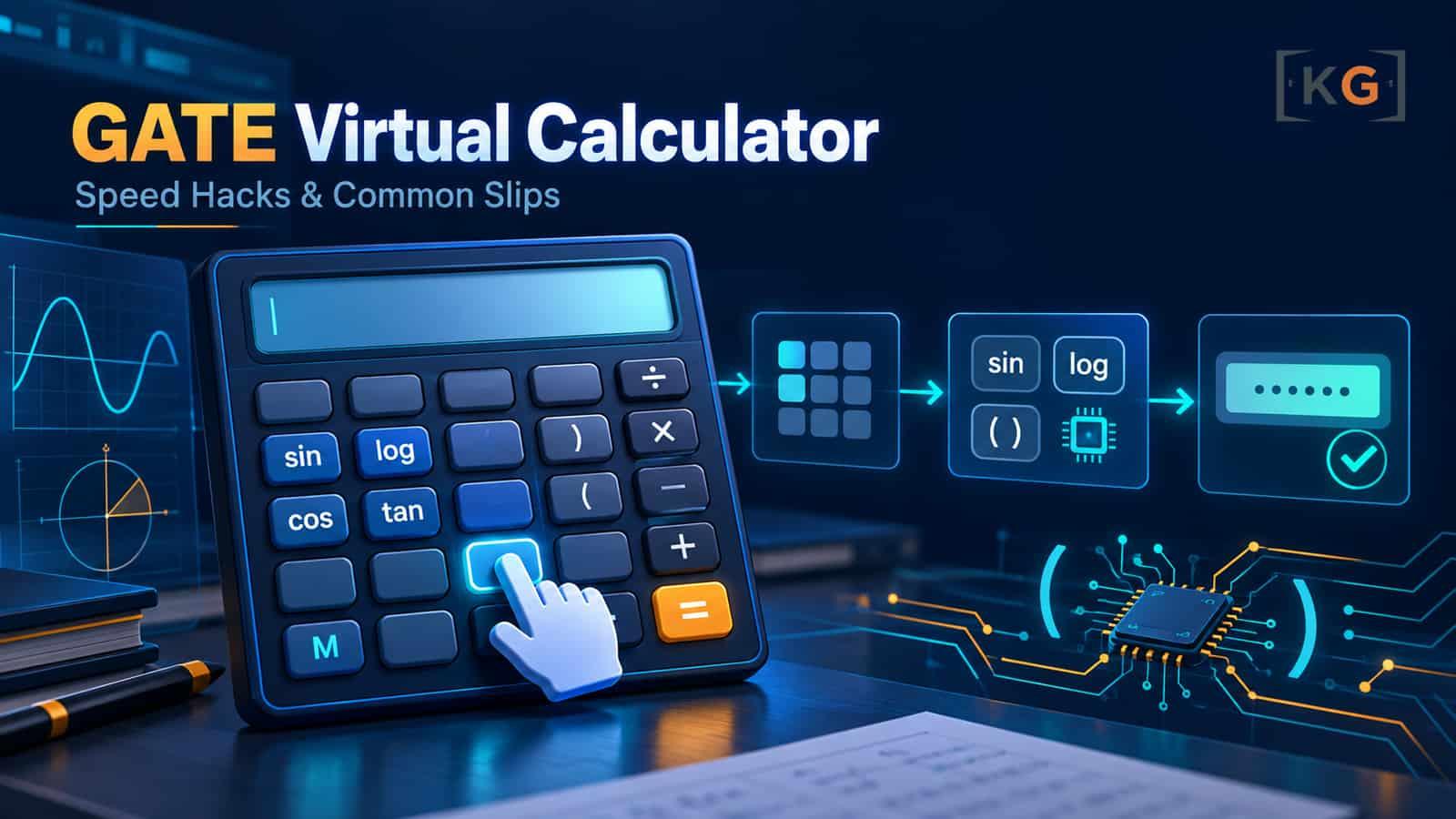
You may know how to solve a numerical problem and still lose time entering it into the on-screen calculator. The GATE interface takes practice: functions such as sine or logarithm are applied through dedicated buttons, memory can hold an earlier value, and a degree/radian mismatch can turn a correct method into a wrong number. A few deliberate habits help you spend less time fixing keystrokes and more time checking the reasoning.
First, keep the stakes in perspective. The GATE 2027 pattern lists questions as one or two marks and says there is no negative marking for a wrong NAT response. A wrong NAT can cost the marks available for that question, but it does not create an additional negative-mark penalty.
The official GATE question paper pattern and the GATE 2027 FAQ should be your final reference for exam rules.
1. Learn how function entry differs from expression entry
The on-screen calculator may look like a desk scientific calculator, but the interaction is mouse-driven and button based. In common GATE virtual-calculator layouts, many single-input functions work by entering the value first and then selecting the function.
For example, to calculate sin(30°), select degree mode, enter 30, and then select sin. To calculate log10(1000), enter 1000 and then select log.
That order can feel reversed if your usual calculator begins by pressing sin or log. Practise each function on the exact calculator linked from the official GATE site when it becomes available for your exam cycle; screen layouts and help instructions are the authority for your session.
This does not mean the calculator simply ignores arithmetic precedence. Multiplication and division still take priority over addition and subtraction in ordinary expressions. The risk is that when you enter a long expression in pieces, you may apply a function to the wrong displayed value or miss the intended grouping. Use the parenthesis buttons whenever the expression’s structure matters.
Intended calculation | Safer entry habit |
|---|---|
| Set Deg, evaluate |
| Use parentheses around |
| Evaluate the exponent first, then apply |
| Keep the full denominator inside parentheses |
For trigonometry, check the angle mode before pressing a trig function. sin(30) in degree mode is different from sin(30) in radian mode. For logarithms, distinguish log (base 10 on the usual interface) from ln (natural logarithm). If an answer looks unexpectedly large, tiny, or negative, inspect the mode and function before redoing the whole solution.
Break long expressions into checkpoints
Rather than typing a dense chain in one go, split it into meaningful parts. For an expression such as
(sin 30° + ln(e²)) / 2
calculate and note the components: sin 30° = 0.5, ln(e²) = 2, so the numerator is 2.5 and the result is 1.25. Parentheses make the intended grouping obvious. The scratch pad is useful for writing the expression and tracking units, while the calculator handles the arithmetic.
2. Use memory keys to avoid re-entering intermediate values
Common virtual scientific calculators provide memory keys such as MS, MR, M+, M− and MC. Their usual roles are:
MS (Memory Store): save the displayed value into memory.
MR (Memory Recall): bring the stored value back to the display.
M+ / M−: add the displayed value to, or subtract it from, the stored memory value.
MC (Memory Clear): clear the stored value before a new calculation.
Check the calculator’s on-screen help because exact behavior can vary by interface. Memory is most useful when a problem combines separately calculated components.
For example, suppose a pipeline question asks for total latency from four stages: queueing 4.2 ms, processing 1.5 ms, transmission 2.8 ms, and propagation 0.5 ms. You can store 4.2 with MS, add each remaining component with M+, and recall the total with MR: 9.0 ms.
A safe memory routine is:
Write the target expression and units on the rough pad.
Press
MCbefore starting a fresh memory calculation.Compute the first component and press
MS.Compute each additional component and use
M+orM−as required.Press
MR, check the recalled value and units, then enter the result.
Do not assume that memory clears itself when you move to another question. Clear it before a new sequence and use MR to verify what you have stored. Memory is a convenience, not a substitute for writing down what the stored quantity represents.
3. Preserve precision until the final step
A display rounds long decimal values to fit the screen. That visible value may be a rounded representation of a more precise internal value, so copying it into another calculation can compound rounding error. Keep fractions, exact powers and symbolic forms on the rough pad when practical; round only once, at the end, if the question asks for a rounded value.
There is no universal rule that every NAT answer should be rounded to two decimal places.
In the GATE 2026 official answer keys, NAT responses had to fall within the range shown for that question to receive full marks. Follow the wording and answer format of the question, and use the official pattern and answer-key guidance for the applicable year.
The GATE 2026 answer-key instructions explain the range-based evaluation used for that cycle; do not turn one question’s range into a blanket rounding rule.
For example, if your calculation gives 0.153846..., do not automatically enter 0.15 just because it has two decimal places. Keep more digits during intermediate steps, inspect the requested precision or interval, and round only as directed. For scientific notation, use the calculator’s Exp function as shown in its help, or carefully enter powers of ten. Confirm that the exponent sign is correct: 3.2 × 10⁻⁴ and 3.2 × 10⁴ differ by eight orders of magnitude.
4. Common slips worth checking before you submit
Wrong angle mode: verify Deg or Rad before every trig calculation.
Wrong function order: enter the argument first when using a single-input function on the interface.
Missing parentheses: group the numerator, denominator, exponent or sum you intend to calculate.
Stale memory: clear old values with
MC; recall and inspect the current value before using it.Premature rounding: retain guard digits through intermediate calculations and round once at the end.
Unit mismatch: convert milliseconds, seconds, bytes, bits, and rates before combining quantities.
Wrong sign or exponent: reread the final display and compare its order of magnitude with an estimate.
5. Build calculator fluency into your practice
Use the virtual calculator during timed GATE practice instead of solving everything with a familiar phone or physical calculator. Start slowly: practise parentheses, trig, logarithms, powers, roots and memory separately. Then use it on mixed CS or DA NAT problems and note which buttons cause hesitation. The goal is not to calculate every step on-screen. Use algebra and estimation to simplify first, then calculate only the parts where arithmetic is useful.
KnowledgeGate’s GATE category and GATE Guidance course can support your broader preparation. For related planning, read same GATE score, different college options and what a low GATE rank means.
Before your next mock, spend ten minutes practising only calculator operations. Check the active angle mode, clear old memory, group expressions with parentheses and keep precision until the final answer. Those small routines make the interface feel familiar when the exam clock is running.
Keep learning

GATE MSQs: How to Avoid Option Traps
A practical elimination method for GATE MSQs: test each claim, spot common option traps, and understand why partial selections earn no credit.
5 Oct 20265 min readGATE CS Preparation

GATE CS Study Plan for Working Professionals
A practical GATE CS plan for working professionals: a 12-hour weekly timetable, flexible subject roadmap, PYQ practice, revision and mock analysis.
1 Oct 20266 min read73 viewsGATE CS Preparation
How to Build an 'Error Log' That Boosts Your Exam Score by 20%
1 Oct 20263 min readGATE CS Preparation

GATE CS vs. GATE DA: How to Decide Which Paper (or Dual Paper) to Target
GATE CS and GATE DA reward different strengths. Compare their syllabus, decide which fits your goals, and see how the official two-paper option works.
29 Sep 20265 min readGATE CS Preparation